


What does a smart toy keep about your child?
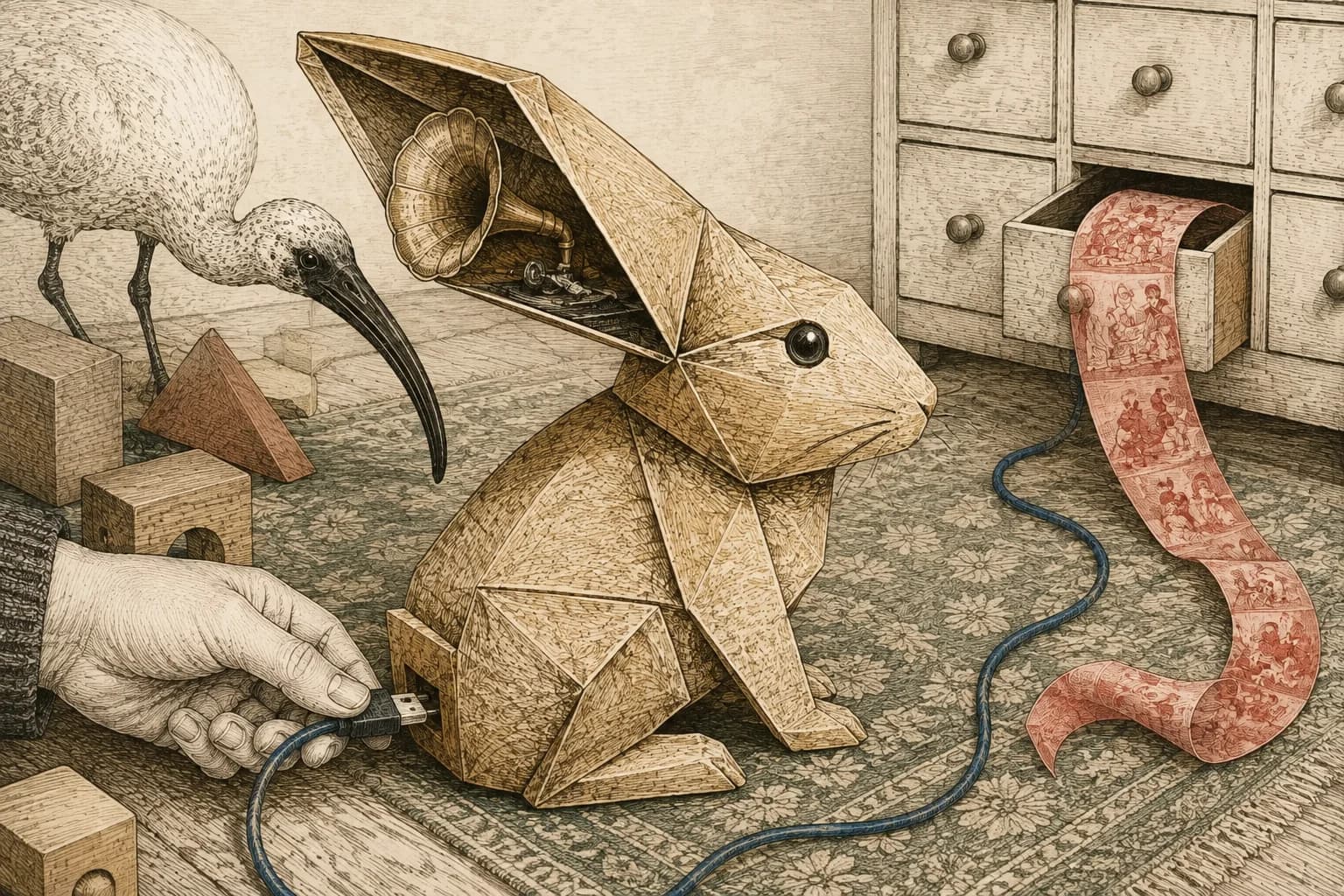
A toy arrives as a present. Your child wants to play; you have an account to create, an app to download and a row of permission requests to get through.
It's easy to treat all of that as packaging. Once the toy works, the setup is forgotten. But some of those choices decide where family recordings go and who holds them after the toy has been put away.
Start with what the toy actually does. A player that downloads a story has different privacy questions from a toy that sends a child's voice to an AI service for a reply. Calling both of them “smart” doesn't tell you which information leaves your home.
Find the part that sends information out
With a connected audio player, choosing a published story and uploading a recording of your child are different uses. You can enjoy the first without necessarily wanting the second.
For example, Creative Tonies let you add your own audio to a Toniebox. Tonies' privacy policy explains that recordings made in the phone or tablet app are uploaded to its server and converted for playback. The little figure isn't the only place involved in holding your recording. Tonies' explanation of its app and Creative Tonies
Before uploading a family recording, listen to it. A bedtime story may also begin with a child's full name or include a conversation from elsewhere in the room. Keep the part you want your child to hear and leave unnecessary personal details out.
The same question helps with other toys: is the microphone being used to save a recording, recognise a command, or send a conversation away for an answer? Look for that specific feature in the manufacturer's privacy information. If a product offers AI conversation, check what happens to the child's speech and the written transcript, including whether either is kept or reviewed. Our guide to children and AI apps explains why deleting the visible result may leave a separate upload or activity history to deal with.
Use downloaded stories without keeping the player connected
A Toniebox can play content that has already been fully downloaded while offline. You still need a connection for setup, new content and changes to a Creative Tonie's recordings. Before relying on offline play, finish the download and try the stories your child will want. On Toniebox 1, the light turns solid green when a download has finished. Tonies' explanation of playback without Wi-Fi
The controls differ by model, so check which box you have before squeezing ears or turning it over.
Toniebox 1: turn it on with no figure on top. Hold both ears for about five seconds until the sound and blue flashing light, then hold one ear for about three seconds. A white light and voice message confirm Offline Mode. To reconnect, remove any figure and hold both ears until the light changes from white to green and you hear confirmation. Toniebox 1 Offline Mode
Toniebox 2: turn it on with no Tonie or Tonieplay game on top. Turn it upside down and hold both ears until white fills the light ring, then squeeze the big ear. Listen for confirmation that Offline Mode is on. Repeat that sequence when you want to reconnect. While offline, it can't receive app changes; app-enabled features such as the Sunrise Alarm are disabled too. Toniebox 2 Offline Mode
Offline Mode stays on until you turn it off. If a new story won't load later, reconnect the box for the download. If your purpose was to remove an old recording, putting the box offline is the wrong next step: it needs to receive the deletion first.
Delete the recording, then update the box
Suppose you recorded your child singing and now want that recording removed from a Creative Tonie. Use the account where you manage its tracks, while the box is able to connect.
On my.tonies.com, open Creative Tonies, select the figure and choose Edit Content. Remove the track with the bin icon, or choose Delete all content, then Save Content.
For Toniebox 1, turn the box on and hold one ear for about three seconds to start the update. Wait for the flashing blue light to become solid green, then place the Creative Tonie on it. Check that the removed track no longer plays. Tonies' deletion and synchronisation instructions
For Toniebox 2, leave the connected box without a figure on top for at least 30 seconds after switching it on, so it can synchronise before playback. If it still plays the old recording, open the Tonies app and check that the box shows as online. If a figure was put on too soon, remove it, let the box switch itself off after inactivity, then turn it back on and wait before replacing the figure. Tonies' instructions for old content still playing
If the box was offline when you edited the playlist, it can still have the old download. Reconnect it and check playback before treating the job as finished. With more than one box in the family, check each one that played that recording.
For a Creative Tonie you're giving away, remove the figure from your Household as well. On my.tonies.com, choose the figure under Creative Tonies, then Advanced Settings → Remove from household and confirm. Tonies says this erases its content; save any recording you want to keep privately before doing it. Removing a Creative Tonie from a Household
Check the phone that made the recording too. Tonies says the app's saved recordings are local to each device, even when several phones use the same account. An empty recording library on your new phone therefore doesn't show what's still on the old one. Review the saved recordings on each device that was used, as well as the tracks assigned to the Creative Tonie. Tonies' saved-recording explanation
The app also lets people export recordings to other apps or, on iPhone, Save to Files. If you used those options, check that destination and ask any recipient about their copy. Removing a figure from your Household doesn't reach a file you sent elsewhere. Tonies' export controls
The server has another distinction: Tonies' EU policy says the original upload is deleted after seven days, but the converted audio remains available for playback. That seven-day statement doesn't mean your child's recording disappears from the service every week. Delete the assigned content when you want it removed, then check the phones and boxes that held their own copies. Tonies' Creative Tonie retention policy
Leave optional family details out of marketing forms
A child may need an age setting for a feature to work appropriately. That doesn't mean every birthday question during shopping or newsletter signup serves the same purpose.
Tonies' EU privacy policy, for example, describes optional children's birth-date information for personalised newsletters and birthday recommendations. You can decline those marketing extras. Toniebox 2 itself requires a Tonies account and the app for setup; an account requirement doesn't make an optional newsletter field necessary. Tonies' account and marketing policy
This matters because the company's account database can hold more than anything visible on the toy. In the FTC's 2018 VTech case, the agency alleged that a breach exposed linked information about parents and children, including personal details and access to photos and audio. It also alleged failures in the company's security and privacy claims. That historical case shows why checking a toy's recording button alone can miss the data collected during signup. FTC account of the VTech case
When you next open a connected toy's app, look at the family information you've supplied and the recordings you've added. Remove what you no longer want there, let the device receive the changes, and return to the parts your child actually uses. The toy can still play the stories your child loves without keeping every family recording you once added.
Sources reviewed 5 September 2026.