

How to blur faces on YouTube
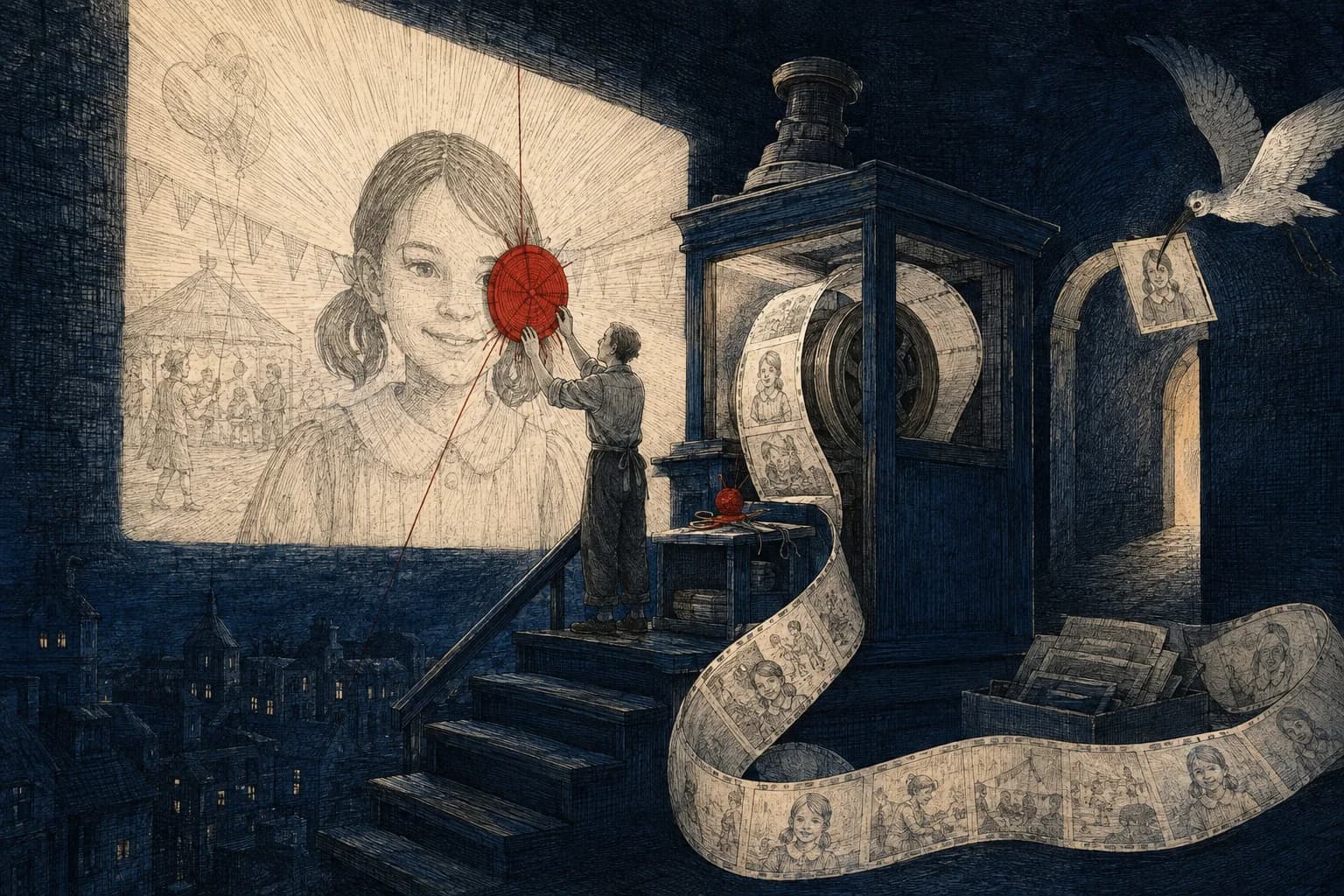
You notice a child in the background of a video you've already uploaded. They only appear for a few seconds, but the video is public, and those few seconds are enough to show their face.
YouTube Studio has a face-blur tool for your own uploads. It can find faces and follow them through a shot. When it misses one, you can draw the blurred area yourself. Do this on a computer, where Studio's video editor is available.
Before you begin, keep a copy of the video you want to preserve. Since June 2025, saved Studio edits can no longer be undone with Revert to original. Don't save an experiment assuming you can remove the blur later. YouTube's blur instructions
Take the public version out of view while you work
In YouTube Studio → Content, find the video, open its Visibility menu, choose Private, then Save. For a new upload, choose Private before publishing it.
Private limits viewing to you and people you explicitly choose. Unlisted still lets anyone with the link watch and pass it on, so it won't stop someone using a link you've already shared. YouTube can still review private uploads through its systems and reviewers. Visibility settings
If you still have the original on your phone or computer, save that somewhere you can find again. If you don't, open the video's Menu → Download in Studio's Content list. Open the downloaded file before treating it as your backup.
YouTube's individual downloads may be 720p or 360p, and some videos aren't eligible, including those with certain strikes or preapproved audio tracks. The download page also links to Google Takeout for exporting your uploads. Keep the original recording if you have it; a small downloaded copy may make later editing harder.
Select the faces, then check where the blur goes
- In Content, open the video's title or thumbnail, then Editor.
- Choose Blur → Face blur. After processing, select the faces to hide and click Apply.
- Play through their appearances. Adjust a blur box by dragging it if needed.
Pay attention when children turn, cross in front of one another or return after leaving the picture. Selecting a face from the detected list doesn't tell you whether its cheek stays covered through a quick turn. Watch those moments before saving.
Cover a face the automatic pass missed
Choose Blur → Custom blur. Select Oval or Rectangle, move the box over the face and drag its corners to resize it. Set the beginning and end using the blur's timeline edges. Choose Track object for movement, or Fix blur position to hold it in one place. Custom-blur controls
A fixed box can work when a child stays in one small part of the picture. Make it large enough to contain their movement throughout that interval. It won't follow them across the room.
For a missed return after an obstruction, give that appearance its own custom blur and check the join. Start just before the first visible part of the face and end after the last. If the automatic track keeps choosing the wrong person, a short, generously sized fixed area may be easier to inspect than a box that keeps changing targets.
If the only box that covers the face hides something you wanted viewers to see, shorten the public video or edit the recording in a tool with more control.
When blurring the section still doesn't work
You can remove the troublesome stretch instead. For videos under six hours, Studio offers Trim & cut → New cut. Place the red box around the part to remove, confirm the cut, then use Preview to watch the join before saving. Before you save, Discard changes cancels the edits. YouTube's trimming controls
Check the sound across the cut too. Removing the picture may take half a sentence with it. A shorter video can still make sense, but an abrupt jump may need a different edit in the original project.
If saving is unavailable on an unedited video with more than 100,000 views, YouTube documents an exception for face blur; the restriction doesn't apply to Partner Program channels. Keep the video private while resolving any remaining edit. Editing restriction
For a replacement made outside Studio, export and review the new file, then upload it separately. YouTube gives each new upload a new address; it doesn't let you replace a video's file while keeping its old URL. Update links you control and deal with the old upload separately. Replacing or deleting a video
Save, then watch the actual YouTube video
When the preview is ready, choose Save. Wait for YouTube to finish processing, reopen the watch page and check the result before changing its visibility. If the edit failed or the face remains visible, leave it private and return to the unfinished section.
Watch the whole video once, then revisit the moments you repaired:
| Part of the upload | What to check |
|---|---|
| The child's first and last appearance | No visible face before the blur begins or after it ends |
| A turn, obstruction or camera cut | The blur stays with the right child and covers the whole face |
| Thumbnail and other pictures promoting the video | They don't show the face you just hid in the recording |
| Sound, captions, title and description | No name, address or school detail you meant to keep private |
If the problem is a spoken name, follow the audio-redaction guide. Blur changes the picture, so the words need their own edit.
Does the saved blur erase the original from YouTube?
The watch-page check tells you whether YouTube is serving the covered version there. The loss of Revert to original tells you that you cannot undo the saved edit through that control. Neither gives you a record of when any unblurred server copies were erased; YouTube's blur instructions don't supply that timetable.
Google's general retention policy says deletion usually takes around two months and data can remain in encrypted backup storage for up to six months, with longer retention for some legal or business purposes. Those are general deletion periods, not a promised schedule for the original behind a Studio blur. A copy someone downloaded before your edit is outside this change too.
For the next video, edit before the first upload if you don't want YouTube to receive the clear face. Blur still leaves information from the image; a solid cover or crop removes more. The video workflow carries that through to a saved file you can review.
Sources reviewed 5 September 2026.