


How to blur kids' faces in a video before you post it

Our children appear throughout Baby Acrobatics. We share the movement on Instagram, while keeping their faces blurred and their names and other details private.
And with movement, putting a blur over the face is only the beginning. The child turns, goes behind your arm and comes back on the other side, while the cover carries on hiding the bit of wall where their head used to be. On the frame where you placed it, everything still looks fine.
That's what tracking is for. The app follows the face through the clip and moves the cover with it, which saves you from positioning it yourself at every moment. You can then go through the video and correct the places where it lost the face. In the example below, watch the face treatment as well as the exercise; both have to keep working while the child moves.
Choose the workflow you need
If you're already editing the video somewhere, you can add the face treatment in that same project. Otherwise, our free face-covering tool opens the clip on your device and does the editing in your browser.
| Where you're starting | Follow this route |
|---|---|
| A clip in your phone or computer's files | Open the Baby Acrobatics tool, select the video and follow the steps below. |
| A Resolve project | Add a Power Window and track it in DaVinci Resolve. |
| A Premiere timeline | Apply Gaussian Blur through a tracked mask in Premiere Pro. |
| CapCut on desktop or iPhone | Set up the two layers and moving mask in CapCut. |
| A Final Cut Pro project | Track a shape mask and repair a missed turn in Final Cut Pro. |
| A video already uploaded to YouTube | Use Studio blur and review it before the irreversible save. |
If you haven't uploaded the original, editing on your device first lets you send the platform only the covered copy.
If you haven’t filmed it yet
A different camera angle can save a lot of editing. Before recording, look through the frame for school names, house numbers, documents and other children. Move the camera or those objects while you still can. If another child is part of the scene, agree with their parent what can be shared before you record the demonstration.
Keep names out of the spoken instructions when the name adds nothing to what you're showing. You can say “hold this hand” without saying whose hand it is. When a child needs attention or doesn't want to carry on, put the recording aside; there's no need to turn that moment into footage to repair later.
For a repeated format, keep a short note beside your filming setup: background, other children, names in the sound, faces through the whole clip, caption, cover image. Use it again on the saved video, because a clean opening frame doesn't tell you what happened after the camera moved.
Start with less video
Once your video opens, use Trim under the player to select the part you want to share. If the moment you want is eight seconds long, make that cut now. You can keep the full original privately without having to track and inspect another minute of footage for this post.
Play your selection once. Look for every face you want to cover, including children in the background, a reflection and whoever appears when the camera swings around. This gives you something to compare with the scan's results, so you're looking for people the scan missed as well as checking the covers it found.
Listen too. The tool can keep the original sound, including names spoken behind the camera. If those need removing, edit the audio separately.
Let the scan help, then look at what it found
Wait for the face scan to finish, then play the clip with its suggested covers. When you spot a missed face, pause where you can see it clearly:
- Choose Add censor. The new cover is selected and gets a numbered row below the video.
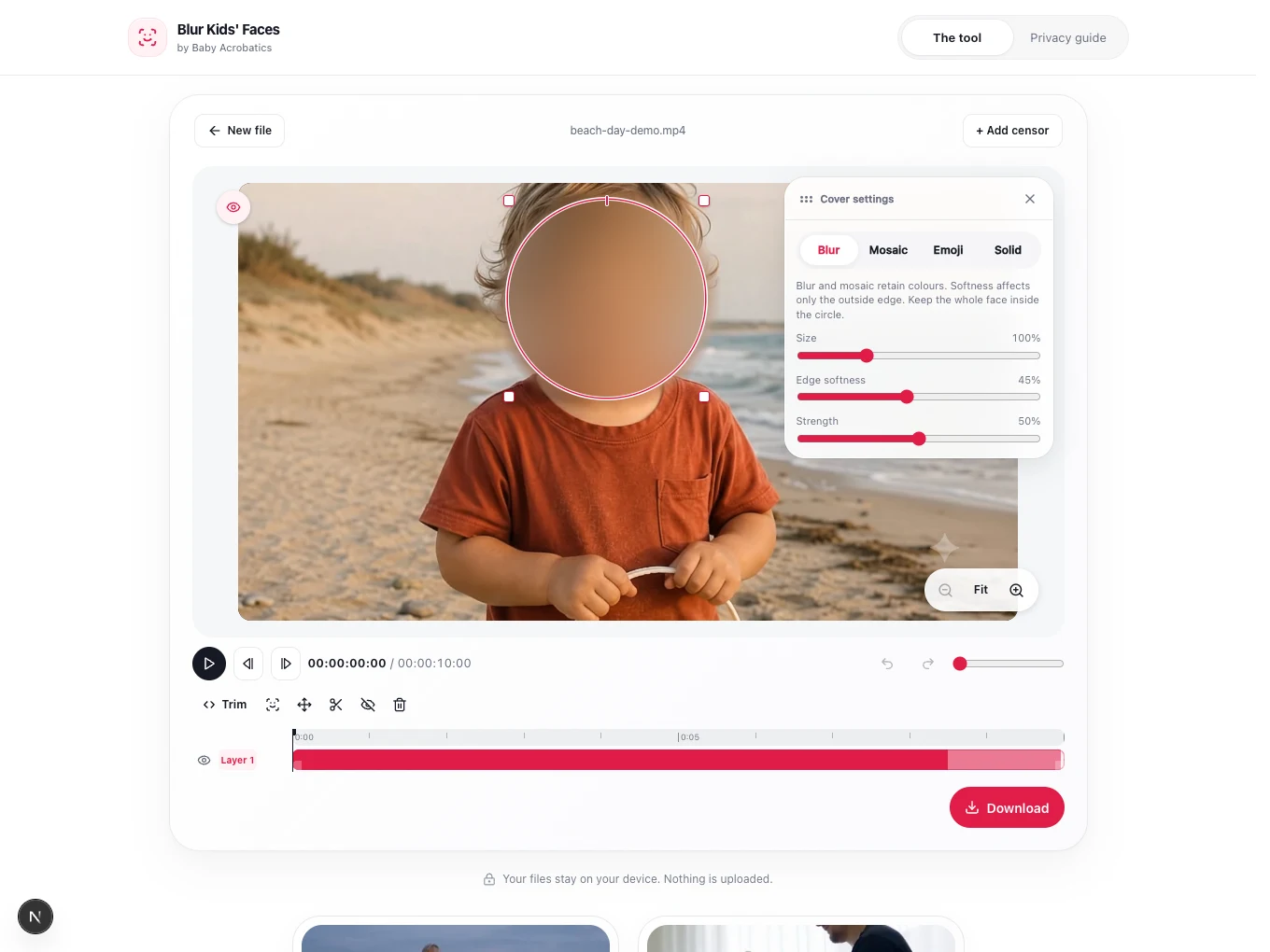
- Drag it onto the face. Resize it using the corner handles on desktop, or Settings → Size on a phone. Include the forehead, chin and sides of the face, with room for a turn.
- Choose Track. If tracking fails, put the cover on a clearer view of that same face and try again. Until you track it, a newly added cover stays in one place across the clip.
- Play the result. Select the cover's numbered row if you need to work on it again. Delete removes the selected cover, so check which row is selected before removing a false detection.
A numbered row is a path for a cover, not a confirmed identity. The same child can appear in several rows after leaving and returning, and a tracker can switch to a nearby face. Before deleting what looks like a duplicate, follow both covers through the clip. One may be doing the work while the other is absent.
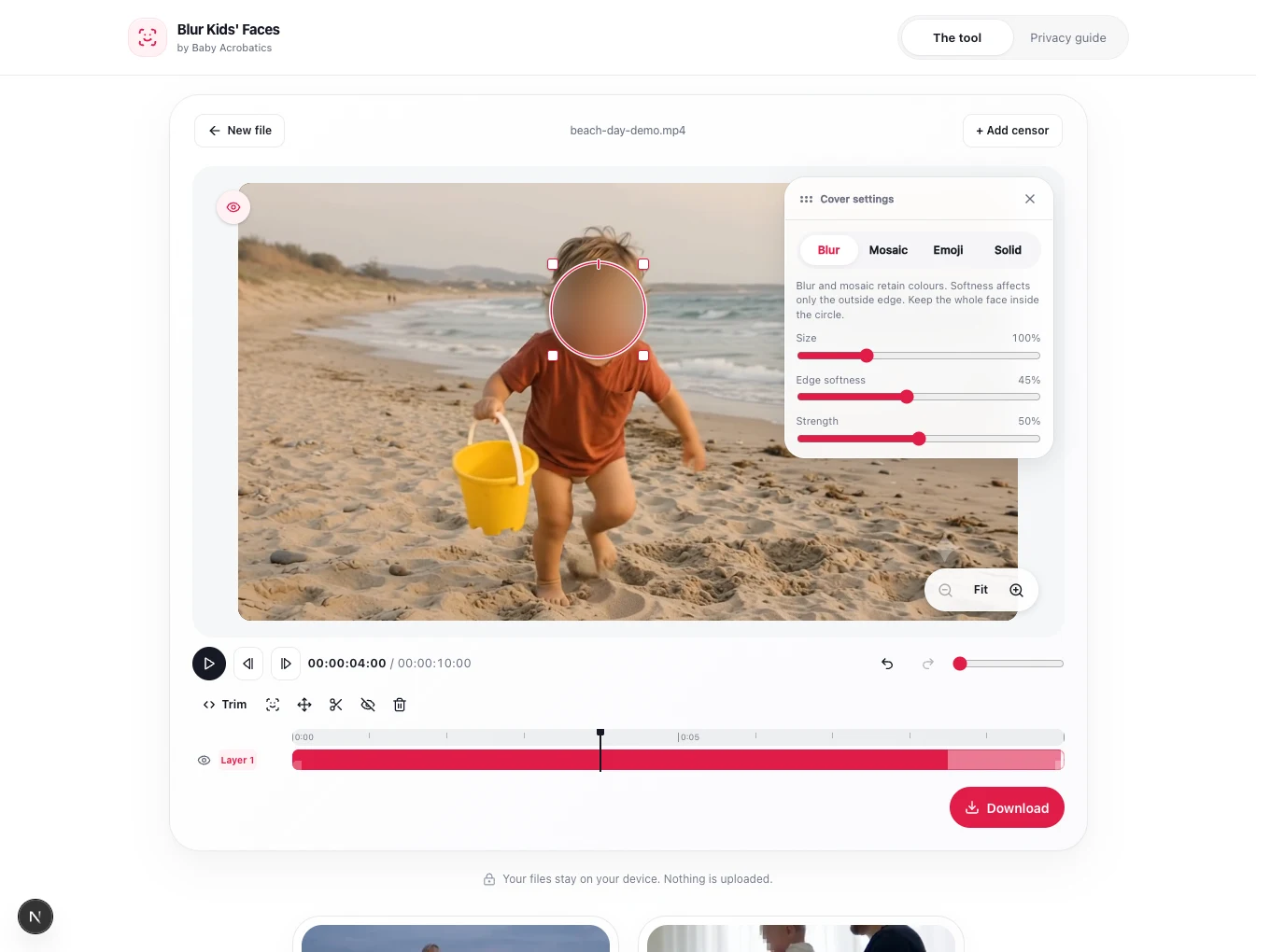
Suppose the cover follows the child across the room, then slips when they turn. Pause at the first missed moment. With All frames off, drag the tracked cover back over the face and resize it if needed. Move forward through the turn and correct it again wherever the face escapes.
Those corrections tell the app where the cover should be at particular times. It fills in the movement between them, so go back a little before the repair and play through it. Two correct positions can still leave a miss between them, especially if the child ducks and comes back up.
If the cover is too small throughout the shot, use Size instead. That enlarges it along the whole track. All frames also applies a drag or handle adjustment across the tracked path; leave it off when you're fixing only one moment. This control appears after a cover has been tracked.
 View larger
Decide what you're willing to leave visible
Select a cover to choose Blur, Mosaic, Solid or Emoji. New covers start with Blur.
Blur softens the face and Mosaic turns it into blocks, but both keep some of its original color and shape. Solid replaces the covered part of the picture with a color you choose. Emoji places just the graphic over the picture, with no background. Its outline and any transparent gaps can leave part of the face visible. The method comparison shows what that difference means in the saved file.
Whatever you choose, keep the whole face inside the circle. The Softness control for Blur, Mosaic and Solid adds a soft edge outside it; that outer halo isn't space to leave a cheek or an eye. Enlarge the cover when the face comes closer rather than trying to compensate with a softer edge.
Spend your attention on the awkward bits
Play normally first, then move slowly through a head turn, two people crossing, an entrance or exit, and any cut to another shot. At each one, follow the face until you're past the difficult part. A child hidden behind someone still needs covering from the first frame where they reappear.
If you see Review gap, select it. The app takes you to a stretch where it lost detection. It holds a larger cover between the last known positions instead of leaving that stretch uncovered, but the child may have moved outside that area. Repair it the same way as a slip: pause, reposition with All frames off, move forward and check again.
New covers have no fade. Leave fades at zero if the face should stay covered continuously; fading a cover makes the original show through while it appears or disappears. We explain the edge and timing problems behind these controls in the article about the tool's tests.
If a section still won't stay covered, use Trim to end before it or begin after it. Keep the longer version in your private archive.
Find the download on your phone
After Export → Download, the finished video may be in your phone's files rather than next to the original in Photos. Open that download before going back to Instagram.
On iPhone with Safari: tap the Downloads button beside Safari's search field, then Downloads. You can also open Files → Browse → iCloud Drive → Downloads. If you chose a different download location, use Safari's download list to find the file instead. Apple's download instructions
On Android with Chrome: open More → Downloads. With a bottom address bar, swipe up on the bar to find Downloads. Tap the saved video to check it. The file's More → Rename option lets you add “covered” to its name; More → Share sends that particular file to a compatible app. Chrome's download controls
If the posting app's picker still only shows the original, stop there. Find the edited download in Files and use its sharing options, or import that file into the library the posting app uses. Don't choose the original just because its thumbnail is the one you recognize.
 View larger
Check the copy you're about to post
On desktop, choose Download. On a phone, choose Export, wait for the edited-copy preview, then Download. Open the saved video from your files or photo library and play it all the way through with sound, including the start, the end and the turns you repaired.
This is the copy you'll select in Instagram or another posting app. Check its thumbnail and duration so you don't choose the original beside it, and pick a covered frame for the post's cover image too.
For a long clip on a device you haven't used before, save a short section first. If it plays correctly, continue with the longer edit. If saving fails, read the error and try a shorter selection; if the file saves but won't play, check available storage and try a current browser. Some formats need converting in another editor before your device can handle them. Keep the original while you sort that out.
Once the video plays with every intended face covered, check its location information and the text beside the upload. A full name in the caption or spoken in the sound can give away the detail you just removed from the picture.
Sources reviewed 5 September 2026.